Communicare247 is a health and social care service provider which delivers connected care solutions built by the community, for the community.
Using effective Internet of things and mobile technologies, including voice-activated speakers, smart phones, smart wearables, sensors and location technologies, Communicare247 enables the UK’s most vulnerable people to live safely and independently in their own homes and communities for longer.
These technologies, coupled with a fully featured online care platform, brings reassurance to citizens and their families, whilst providing valuable health and activity data to care providers which can be used to manage health and enhance care delivery.
Case Study – Communicare247 helps Sanderson High travel independently
Communicare247 partnered with Sanderson High School, an additional support needs (ASN) school to create a service which would help their pupils build confidence whilst travelling independently.
Using the Freedom Device with location-enabled alerting, the pupils were able to travel independently, using public transport, between home and the classroom. Reassurance that direct support from their teacher was only a button press away, increased the pupils, parents, and teachers confidence in their ability to travel alone.
With Communicare247’s support, the school has achieved a 50% increase in the number of alumni who are now able to travel using public transport, instead of private transport methods.
The University of Dundee is pleased to announce the launch of an MSc degree focused on training and professionalising the role of the Educational Assistive Technologist. The MSc in Educational Assistive Technology within the University’s School of Science and Engineering will train individuals to implement and support the use of technology within education to enable students with a broad range of learning difficulties and/or physical disabilities access the curriculum.
The first intake for this programme will be in January 2021.
The degree has been designed primarily as a blended learning part-time course taken over two years (a full-time version is also available). The degree differs from traditional Assistive Technology programmes in its focus on the assessment and support of technology within the Educational environment. It is aimed toward teachers, therapists and technologists who are seeking to develop and enhance their ability to support learners who require Assistive Technology (AT). We welcome applications from people who have experience of working to support disabled students in a variety of contexts, inclusive of those who may not hold higher qualifications. The entry requirements for the course have been designed to be as inclusive as possible.
Course participants already working in an AT environment will compliment theoretical learning with projects within their workplace. Students will also interact with expert users of AT within the University’s unique User Centre and during placements; and once qualified, will undertake the assessment, provisioning and ongoing support of AT systems within specialist and mainstream education or social care organisations.
How is the programme structured? The two-year part-time programme will be delivered by a blend of distance and on-campus learning (depending on COVID-19 guidance) as many of the target students will already be employed in education and social care organisations that provide services to disabled people. The philosophy throughout the programme is that teaching will be highly interactive, and students will be encouraged to bring their knowledge to bear on the learning community. Intensive on-campus teaching (or alternative online teaching to reflect current COVID-19 guidelines) will provide the theoretical underpinning to compliment the practical elements of the programme which will be undertaken within the students’ work setting. (Placements will be identified for students who are not currently employed.) Programme staff will work to support students and their home organisations to integrate the EduAT role successfully. Where possible this will include visiting students in their organisations to provide this support. Each year cohort will attend the equivalent of two intensive weeks per academic year, completing four weeks over two academic years. Full-time students will be accommodated by taking all four weeks within one academic year. Intensive weeks will normally take place on campus in Dundee where possible.
Who will teach the programme? The programme is delivered by the Discipline of Computing with the addition of optional modules in the Schools of Education and Social Work, Health Sciences and Social Sciences. The programme builds on the expertise in Accessibility and Augmentative and Alternative Communication (AAC) Technology within Computing and the ongoing collaboration across other Schools. The programme director is Professor Annalu Waller OBE, supported by two lecturers with extensive experience of working with and teaching individuals with a wide range of disabilities, Rohan Slaughter and Rolf Black. Together we have over 90 years’ experience in AT.
The Karten Network website aims to not only provide information to the general public but to serve the Karten Network itself. A prime example of this is our Home Learning Support section, if you have not already done so, please take a look at the resource: https://karten-network.org.uk/home-learning-support/
We also aim to facilitate collaboration by providing information about what services and areas of expertise a centre has. We would therefore kindly request that the information on your centre page is kept up-to-date. This can be done by your Karten Centre manager, or the relevant person within your organisation.
While every effort is made to ensure that the current person responsible for the Karten Centre information has a Karten Network account with the necessary privileges we do know that things change. If you don’t have an account please contact me.
If you have forgotten your password, this can be reset, by clicking on the “Login” link, located on the top left of every page on the website.
Clicking on the “Lost your password?” link below the login form.
Enter either your user name or e-mail address and clicking the “Get New Password” button. You should then receive an e-mail enabling you to reset your password.
Allow a few minutes for the email to reach you. Please check your junk/spam folder.
If you don’t receive an e-mail, please contact me.
To update your centre page:
Please login to the Karten Network website. The login link can be found on the top left of each page or by visiting: https://karten-network.org.uk/login/
Enter your username or e-mail address, and your password.
Once logged in, navigate to your centre page. Below the page title an “Edit Centre Information” link should now be visible. If this is not the case, please contact me [martin@karten-network.org.uk]
Click on the “Edit Centre Information” This will take you to a form where you can update and add information.
Edit the information as necessary. Then scroll down to the bottom of the page, and click the “Save Changes” button. Should you wish to exit the edit form without saving any changes, a cancel link is also available at the bottom of the page.
Should you have any questions, comments or suggestions about your centre page, please contact me: martin@karten-network.org.uk
Hello everyone – I just wanted to introduce myself. My name is Inés Meza-Mitcher and I joined the Ian Karten Charitable Trust as their new Administrator early this year.
I have over a decade of experience in administrative support roles and have a particular interest in supporting charity boards and effective governance.
I’m really looking forward to getting to know you and supporting the excellent work you do. Please feel free to get in touch at: ines@iankartencharitabletrust.org.uk
We were fortunate to have lots of lovely seasonal animations and stills for our 2019 Karten Network greeting. As ever it was very difficult to decide on a winner as there is so much talent across our Karten Centres.
All entrants received a Certificate to thank them for their super work and creativity. However, there could only be one winner, and I am delighted to congratulate Dick Eborn who attends The Grange Karten Centre in Bookham. His animation and choice of music are charming and capture the spirit of the festive season perfectly.
A single portable and light weight device, Connect & Learn is
the newest way for low vision learners
to access the curriculum. Unlike many specialist VI devices, Connect &
Learn centres around a popular mainstream Windows 10 tablet – Microsoft’s
Surface Pro. SuperNova Magnifier comes included as standard, along with a large
print wireless keyboard, a folding stand and a backpack.
Place the tablet on the stand and
Connect & Learn acts as a digital magnifier. Place a document under the
built in camera and students can: magnify the document, zoom in using their
fingers on the touchscreen, add a colour scheme, rotate or lock the image. They
can even save the image to add to their work or to explore again at home.
Choose the Connect & Learn
package with SuperNova’s speech included and your student can tap the screen
and hear the words on the document read aloud. And the scan and read feature is
impressively accurate. Send the text to a Word document, move fingers to the keyboard
and Connect & Learn becomes a Windows 10 laptop complete with SuperNova’s
full set of magnification and colour enhancing tools.
Connect wirelessly to the interactive
whiteboard and low vision learners, can ‘see’ and magnify the whiteboard. Again
adjust colours, zoom in, take photos – Connect & Learn doesn’t need an
extra & expensive camera that points at the board so your partially sighted
student isn’t forced to sit at the front of the class. [We also know IT skills
aren’t always readily available in school, so we’ve recently released a free whiteboard wizard download to
help you connect to the whiteboard.]
As with all of Dolphin’s
products, Connect & Learn gives direct access to browse and download from
the RNIB Bookshare Education collection of more than 320,000 textbooks.
[Contact the RNIB to get your school’s free login.]
There are also a couple of other
Connect & Learn features that teachers tell us are worthy of note. The
Surface Pro charger connects magnetically, so it’s super easy for partially
sighted students to plug in the power. And the tablet weighs less than 2kg – so
much lighter to move between classes than your typical VI solution. It’s also
worth saying that because Connect & Learn is built on Windows 10 and uses MS
Office products, students are developing their essential IT skills for life
outside of school.
Connect & Learn is best
summarised by a young VI gentleman I recently met in year 8 at secondary school
in the Midlands. “With Connect & Learn I don’t feel different!”
As we are now well and truly in to the season of winter and approaching Christmas, I decided to discuss the Hive App and hub. The app is fully accessible for both Apple and Android devices and is relatively easy to navigate and use.
I purchased the Hive Hub back in August of this year and
although it is pricy at £300 I have found the benefits to be enormous in terms
of giving me more control and access to my heating, lighting, security and
everyday appliances in particular.
As I
have a busy daily schedule, I wanted to make the process of operating my
heating that little bit easier to manage. Until I purchased Hive, I had no way
of setting timers or controlling the thermostat when trying to warm my home up
effectively. This is now a thing of the past thanks to the Hive app and hub.
From controlling heating and hot water, switching lights on and off and even
turning everyday appliances such as the kettle on using Smart Plugs, I have
total control of my entire home using the Hive app on my iPhone at anytime,
anywhere. This has helped make my life much easier and in theory, should help
me keep my utility bills affordable.
So
how does Hive work?
Firstly,
you must have a smart meter and a reliable internet connection through your
wifi router before even considering looking into purchasing the Hive Hub. Also
important to note is that Hive is exclusive to British Gas customers.
Therefore, if you are with an alternative energy supplier you will need to
contact them directly to find out if they have a similar option.
You then
need to have the hub installed by a qualified engineer. Once this has been
achieved, you can manage and setup your smart thermostat, plugs and lights
straight from the Hive app on your smart phone. The Hive thermostats allow you
to monitor the temperature in your house, set heating timers and even set the thermostat
to a target temperature so that if it falls below the set degree, the heating
will turn on automatically.
The
Hive Smart Plugs can make energy use more efficient by enabling electrical
appliances in the home to be turned on and off or by setting schedules. So for
example, if I am walking my guide dog and returning home, I can turn the kettle
on using my iPhone and it will be ready to pour as soon as I am through the
door. The use of smart plugs also gives the added benefit of allowing me to
switch off appliances I might have accidentally left on even though I am not
actually in the house. So they basically can help take the stress out of my working
day because I can monitor everything on the go. The Hive smart light bulbs work
in essentially the same way as the plugs meaning you can schedule timers so
they will be switched on when you are out of the house which is really good
from a security point of view. The additional advantage of being able to
connect all of your Hive appliances and heating to a smart speaker such as a
Google Home or Amazon Echo means that you have the opportunity to control
everything just by using your voice.
In summary, finally going down the route of making my home
“smart” gives me total control of almost every appliance, heating and security,
all through the use of an app. It makes my life far easier and definitely gives
me peace of mind for the future, both in terms of monitoring my utility bills
and also for security reasons. In my personal opinion, for those of you who are
smart phone users and are reasonably tech savvy, this kind of technology could
be a game changer for you in the future.
Over the last few years it is fair to say that there have
been some extremely exciting, innovative and life changing apps which have been
developed which increase the independence of people with all kinds of visual impairment.
Once again, I am delighted to bring another of these to your attention. This
time it’s an indoor navigation app called Clew.
Clew is a free
iPhone app that records a user’s path and then guides you back to your starting
point. Clew was created to help visually impaired people to remember a location
such as returning to a seat in a room. Designed to work indoors, Clew uses
the camera on your iPhone to record a video of landmarks along your route. It
will then save certain points such as stairs, turns etc and guide you back to
your initial starting point.
How to use Clew
Hold your phone
upright in front of you with the camera pointing straight ahead. Press the “record
path button”, then walk the route you want the app to remember. It is worth
stating that at this stage, it is recommended that when recording a route, you
ask for sighted guide if possible. Press Stop Recording at the end of the
route. When ready to return, Press the “Start Navigation Button” and Wait for
Clew to convert the information. Clew will then provide verbal, haptic and
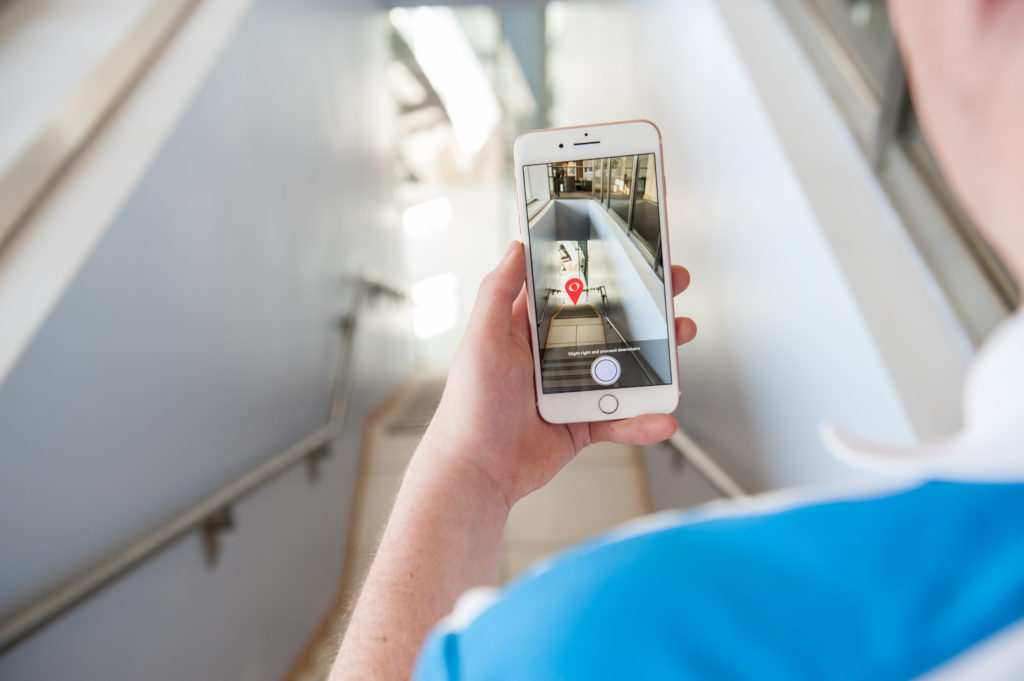
visual feedback as you reverse the route. Visually, the screen shows an image of
the next part of the route with a red
pin indicating where to go. If the user veers off the path, the red pin
disappears off the edge of the screen. When walking along the desired path, a
clicking sound is heard; the clicking sound stops to indicate when the traveler
has veered. A whistle tone indicates a turn; the app also verbally announces
which way to turn. The route is available until the app is closed from the app
switcher. According to the website, Clew works best with short indoor routes
and it is not advisable to use the app when outdoors because of varying
lighting conditions and possible glare from sunlight which could interfere with
the video recording.
First impressions
I have been hoping for an app like Clew for years to assist
with travelling independently when an indoor environment. I have mainly tested
the app in familiar areas such as our centre and so far, I am delighted to say that the
experience has been fantastic. I recently used it to create a route from my
upstairs office to the downstairs kitchen as sometimes I still get confused
with this route as I don’t do it very often. The app then guided me almost
flawlessly back to my office from the kitchen and only stopped giving me
directions when I was back at my chair. It even told me when I was coming up to
stairs and where to turn when I had reached the first landing and needed to go
up another flight. Sometimes the app does get confused if you have to make a
lot of left and right turns in quick succession, but for the most part it is
extremely reliable and has really increased my confidence when using it. I
think the technology used within the app is also extremely interesting as
everything is achieved by video. There is no GPS or internet connection
required to use the app which means you can use it in any indoor environment
you choose. Please note that this app is still in it’s early stages so it will
be a case of trial and error when using. The developers are planning to update
the app regularly though and have lots of great ideas for improving it’s
capabilities. Also, as always with these apps, please remember that they are
not designed to be a replacement for a Cane or Guide Dog. It is designed to
work alongside your mobility aid and you will need to depend on your mobility
and orientation skills when using this app.
At the beginning of March, Microsoft released a new and extremely
innovative app designed to assist people with a visual impairment to navigate
and understand their surrounding environment. The app is called Microsoft
Soundscape and is free to download and use.
Note: At this stage, the app is only available for iPhone users.
Overview
Soundscape uses 3D audio sound to give you a full audio map of what’s
around you when you are out and about. It is designed to help you navigate
independently and encourage you to be more confident in exploring streets and
getting to destinations. The app announces streets and points of interest such
as shops, cafes etc. in 3D so that you actually hear the exact direction in
which the place is located. To use Soundscape accurately, you need to use a
pair of either bone conducting headphones or Apple AirPods. As soon as you put
the headphones in your ears and start walking, the app will begin telling you
what is in your surrounding area.
Example:
As you walk along a street, you may suddenly hear directly in your right ear, “McDonalds, twenty five metres.” This means that there is a McDonalds restaurant not too far away from you, immediately to your right. Then if you wish, you can actually tell the app to direct you to McDonalds by setting a beacon. This will then give you constant audio information and feedback to let you know if you are heading in the direction of McDonalds or if you are going off course.
Operating the app
Soundscape offers three modes – ‘My Location’ tells you the direction
you are facing and the streets and intersections which are closest to you,
‘Around Me’ gives you places of interest which are near you in all four
cardinal directions, and ‘Ahead of Me’ provides the names of five places of interest
which are nearest to you and directly ahead of you. It is also worth mentioning
that the app is fully accessible and that VoiceOver does not have to be enabled
in order to use the app. So basically, anyone with a visual impairment can use
this app.
First impressions
I was actually a tester for this app when it was under development and
have been impressed with it from the very start. I find the app extremely easy
to use and another great feature of the app I haven’t mentioned yet is that it
is compatible with Apple Watch. This means that I don’t have to keep stopping
in the street and taking my iPhone out of my pocket when I want to use the app.
I can just tap the relevant button from my Apple Watch which is constantly on
my left wrist.
I think my favourite feature of the app is definitely the beacon
feature. I used the beacon feature once when it was snowing very heavily and I
wanted to get to my local Co-op. I became disorientated, but once I had told
the app to direct me to the Co-op, it kept me on track the whole way and always
kept me heading in the right direction. In fact, the app only stopped giving me
information when I was outside the door of the store. I felt very reassured
after this experience I now actually use Soundscape almost every day when I am
walking with my guide dog.
Important additional note!! The app is designed to be used in tandem with your usual mobility aid, such as a cane or guide dog. Do not use this app on its own when you are travelling outside. Also, to use this app, a constant internet connection is required, so a 3 or 4G mobile data plan is essential.
Seeing AI is a Microsoft research project that uses Artificial
Intelligence features to deliver an intelligent app, designed to assist
visually impaired people with performing everyday tasks such as reading text,
recognising people’s faces, identifying products, and identifying your
surroundings. This app is fully accessible with VoiceOver and magnification
features on iPhones.
How it works:
The app has nine different ‘channels’, which you can use for performing a specific task. Below is a brief description of each of the channels.
Short text:
Simply point the camera at text and it will be read aloud. Very useful for reading signs, text on noticeboards or even on food tins etc.
Document:
Hold the phone camera over a document such as a magazine, newspaper or letter and the app will automatically take a picture of the document and read it aloud to you. It will also try to format the document for you as well, so you have an idea of how the page is laid out.
Product:
Hold the camera over the barcode of a product and the app will scan it and then tell you the name of the product. You can also find additional information about the product such as cooking instructions or ingredients. Barcodes are sometimes difficult to locate on certain products, but a really cool feature of the app is that audible beeps are given to help with the locating and scanning of barcodes.
Person:
This channel allows you to take a picture of a person’s face and the app will then attempt to work out the age of the person and tell you what they look like. Note that you can also train the app to recognise people’s faces as well, so if you point the camera towards them, the app will actually tell you who they are.
Currency preview:
Point the camera at different types of currency such as Euro, Dollar and Pound to hear their values.
Scene preview:
Simply point the camera in front of you and take a picture. The app will attempt to describe everything in the view of the camera. Note that the Scene channel is still being developed, so is not always accurate in describing certain things. Hopefully it will improve over the next few months though.
Colour preview:
Just point the camera of your phone at any object and its colour will be announced. Note: lighting conditions are a factor.
Handwriting preview:
This experimental channel allows you to take a picture of handwriting and the app will attempt to recognise it and read it to you. Note: the text has to be the right way up for this channel to work.
Light detector:
The camera on the phone will detect the amount of light around you. This works by using pitch sounds. The higher the pitch, the more light there is.
First impressions
I have used this app for around two months and am really enjoying most
of its features. The barcode and text reading facilities along with the facial
recognition features are extremely accurate most of the time. The colour,
handwriting and light detecting features also have huge potential, as does the
scene preview mode. To be honest though, I am a little unsure about the currency
feature, as now that plastic notes are being printed, all £10 notes have
Braille in the top left corner. On the whole though, I really feel that this
app has made a big difference in terms of increasing my independence on a daily
basis. Now I don’t need to depend on friends or family to read my mail or find
products in my freezer for me. The fact that all these features are available
in one easy to use app is fantastic!
Price:
Seeing AI is free to download and use.
Note: This app is currently only available for Apple products and requires a constant internet connection.
The theme of the 2019 TechAbility conference is raising standards. It aims to showcase the very best practice in assistive technology provision for all learners, whatever their requirements. Attending is a must if you’re interested in integrating assistive technology into your provision, getting first-rate outcomes from best practice, or if you just want to learn a little more about how assistive technology can help your learners.
Attendees will benefit from workshops that will stretch their practice. They include the results of a new study on using eye-gaze and speech technologies to code and of a research project on appropriate symbol communicational aids. If you’ve ever wondered what your organisation could get out of 3-D printing, or how to use switches effectively, there are workshops on those too.
Sessions on professional development for assistive technologists and how the GDPR applies to AAC devices will be highly informative for college and centre leaders.
TechAbility is also excited to introduce the TechAbility Standards at a workshop at the conference. These standards will outline best practice for assistive technology in further education. They’re useful if you’re just starting out or if you’re looking for something to judge existing practice against.
The keynote speakers will all be delivering on the theme of Raising Standards, but tying this into their area of expertise.
Janice Murray | Raising Standards: Enhancing AAC Decision Making Janice is Professor of Communication Disability (AAC) at Manchester Metropolitan University
Sal Cooke OBE | Raising Standards: Why Does It Matter Now? Sal is a trustee of the Ian Karten Charitable Trust and Association Council Member for the British Assistive Technology Association (BATA)
Robert McLaren | Raising Standards: Outcomes-focused policy Robert is Head of Industry Technology & Innovation, Policy Connect
Workshops
Opportunities for Professional Development in Assistive Technology Paul Doyle, Hereward College & Holly Hartley, Seashell Trust
What Use is 3D Printing? Simon Barnett, National Star College
AAC and GDPR; what should organisations be doing? Fil McIntyre, TechAbility and Beaumont College
AT Solutions for People with Visual Impairment Anna Janickyj, RNIB College
Identifying Appropriate Symbol Communication Aids; presentation of a research project Janice Murray, Manchester Metropolitan University
Implementing Assistive Technology: What can Specialist Colleges and General FE Colleges learn from each other? Rohan Slaughter, JISC
Demystifying Switches Hannah Golding, Treloar College
TechAbility Standards: what are they & how can they benefit your organisation? Neil Beck, TechAbility
Making Coding Accessible for People with Physical Impairments Bharat Paudyal, Birmingham City University
Exhibition
Exhibitors at the conference include Scanning Pens, Smartbox Assistive Technology, Liberator, Sight and Sound Technology, Sonecent, LexAble, TechEd Showcase, Claro Software, Present Pal, ACE Centre, Soloc, and CREATE Education.
Advance warning that significant changes will be implemented regarding the application process for Karten funding. More details will follow by the end of November, but I wanted Centres to be aware that for future applications an Application Form will be introduced. This will apply to all Centres applying for additional funding from March 2020. The application form is currently under development and will be issued as soon as possible with relevant guidance.
If any Centres are currently working on their applications, the provided guidelines are still relevant and the spreadsheet will also need to be completed to accompany the application. You should be able to develop the basis of your applications and then transfer content over to the application form once it is ready for use.
Angela Hobbs, Trustee and Administrator of the Ian Karten Charitable
Trust has written a second book, this time about her pony ‘Charlie.’ It will
appeal to anyone who loves horses and ponies, maybe participating in riding and
pony care.
It is a true story, through Charlie’s observations and thoughts, of his
life from early memories to the present day. It is presented with warmth and
humour and provides an insight into the lives of these noble creatures.
A big thank you to the Hedley’s Foundation Radio Team in North Shields
for recording and producing the audio version of the book in their Karten Media
Suite. The Hedley’s team also produced a link on Twitter, which was available
to download in time for World Book Day on 7th March 2019.
Another big thank you to Martin Pistorius, the Karten Mobile Technical
Advisor, for all his technical support in enabling the links to be available on
the Karten website, Jiscmail, Facebook and Twitter.
Angela’s book has also been accepted by the charity ‘Seeing Ear.’ They
have produced it in audio format and it is now available for blind and visually
impaired people to download from their library collection.
We use cookies on our website to give you the most relevant experience by remembering your preferences and repeat visits. By clicking “Accept All”, you consent to the use of ALL the cookies. However, you may visit "Cookie Settings" to provide a controlled consent.
This website uses cookies to improve your experience while you navigate through the website. Out of these, the cookies that are categorized as necessary are stored on your browser as they are essential for the working of basic functionalities of the website. We also use third-party cookies that help us analyze and understand how you use this website. These cookies will be stored in your browser only with your consent. You also have the option to opt-out of these cookies. But opting out of some of these cookies may affect your browsing experience.
Necessary cookies are absolutely essential for the website to function properly. These cookies ensure basic functionalities and security features of the website, anonymously.
Cookie
Duration
Description
cookielawinfo-checkbox-analytics
11 months
This cookie is set by GDPR Cookie Consent plugin. The cookie is used to store the user consent for the cookies in the category "Analytics".
cookielawinfo-checkbox-functional
11 months
The cookie is set by GDPR cookie consent to record the user consent for the cookies in the category "Functional".
cookielawinfo-checkbox-necessary
11 months
This cookie is set by GDPR Cookie Consent plugin. The cookies is used to store the user consent for the cookies in the category "Necessary".
cookielawinfo-checkbox-others
11 months
This cookie is set by GDPR Cookie Consent plugin. The cookie is used to store the user consent for the cookies in the category "Other.
cookielawinfo-checkbox-performance
11 months
This cookie is set by GDPR Cookie Consent plugin. The cookie is used to store the user consent for the cookies in the category "Performance".
viewed_cookie_policy
11 months
The cookie is set by the GDPR Cookie Consent plugin and is used to store whether or not user has consented to the use of cookies. It does not store any personal data.
Functional cookies help to perform certain functionalities like sharing the content of the website on social media platforms, collect feedbacks, and other third-party features.
Performance cookies are used to understand and analyze the key performance indexes of the website which helps in delivering a better user experience for the visitors.
Analytical cookies are used to understand how visitors interact with the website. These cookies help provide information on metrics the number of visitors, bounce rate, traffic source, etc.
Advertisement cookies are used to provide visitors with relevant ads and marketing campaigns. These cookies track visitors across websites and collect information to provide customized ads.